
Phone Configuration
Updating the config file
- Plug in an ethernet cable to the port on the back of the phone that is labeled internet. If you don't have POE (Power over ethernet) you will need to plug in the power cable as well.
- The device will get an IP, Check the status tab in the menu on the phone and make note of the IP it receives. Also make note of the firmware patch. This guide is was written with patch 108.86.0.90 if you are on a newer patch you may need to downgrade and update this document as well as the config file for the phones.
- On you're laptop go to the following webpage https://the.ip.from.phone
- You will be asked to log in the default credentials are:
- username: admin- password: admin - On the left side of the webpage click on Settings then Configuration
- Under BIN Configuration click browse to import the latest .bin config file located at:
IST - Communciations/Phone System/YYYY-MM-DD Config.bin and then click import. The phone will then restart and apply the update. This should only take a few minutes to complete, if you find yourself waiting more then 5-10 minutes something is likely wrong. Check to make sure that you are using the latest config file and that you are on the same firmware patch that this guide is intended for. After this config is imported the credentials for the webpage with be different. You will need to use the handset password for the phone that can be found in keeper.
Creating an Sub Account
- Go to https://voip.ms/signin/index.php?ln=en and log in.
- At the top un Sub Accounts select Create Sub Account
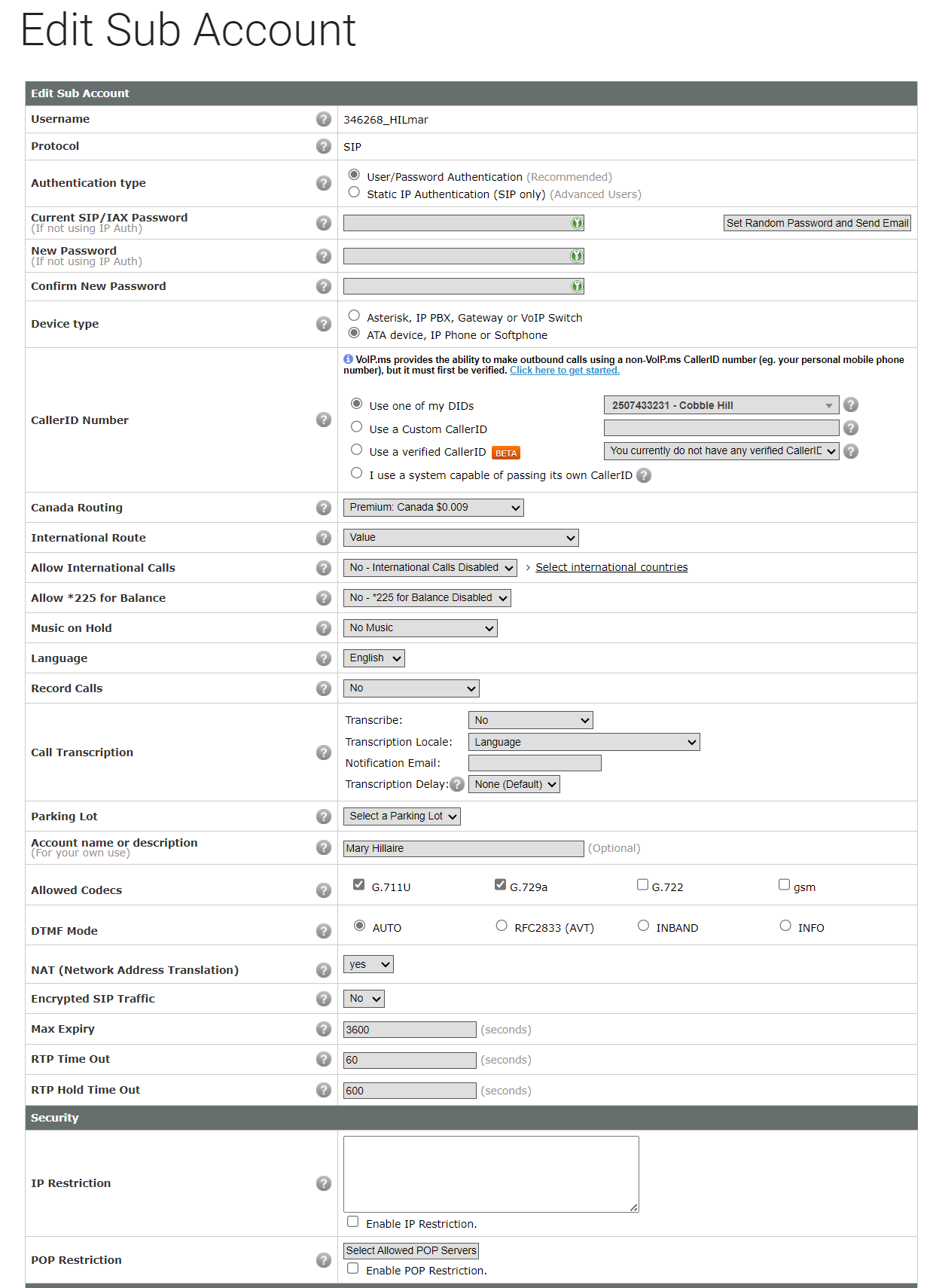
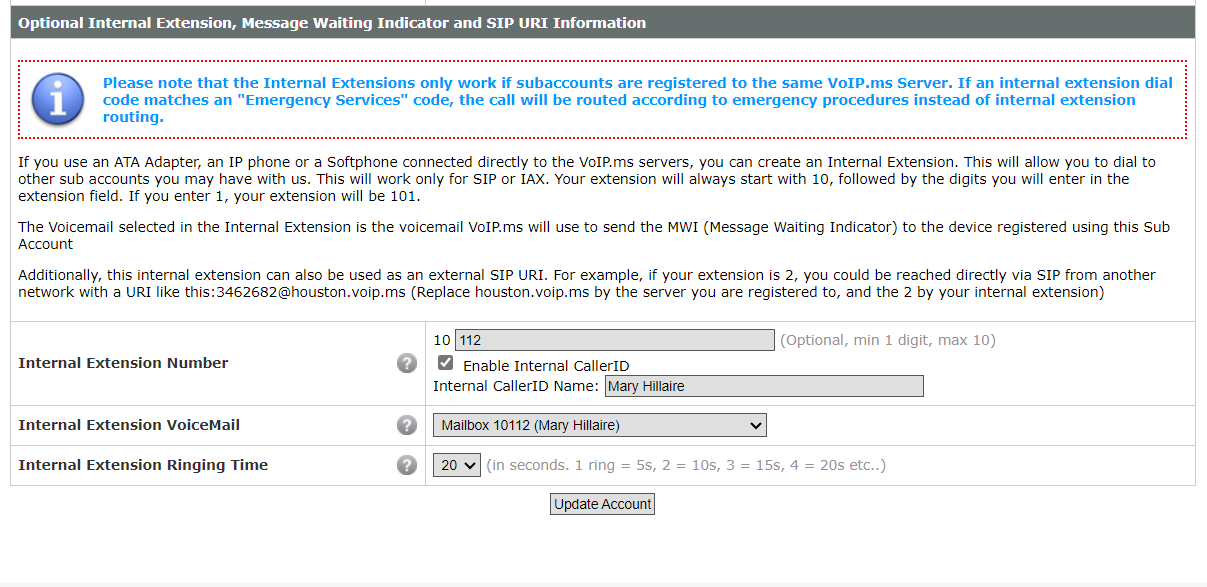
- Enter the following settings be sure to use the screenshot as a reference.
- Username: 346268_ABCxyz (Replace ABC with first three letters of their last name in uppercase. Replace xyz with the first three letters of their first name in lowercase)
- Canada Routing: Premium
- Account Name or Description: Firstname Lastname
- Internal Extension Number 10XXX (After the 10--- the first number represents the department --1-- and the last two numbers ---00 is an incremental number based on how many desk phones are setup in that department)
- Enable Internal CallerID: Yes and then set the CallerID name to: Firstname Lastname. - Then click Create Account
Registering the Account
- Log into the phone's webpage using its IP and log in with the configured phone credentials found in keeper.
- On the left under Account select Register.
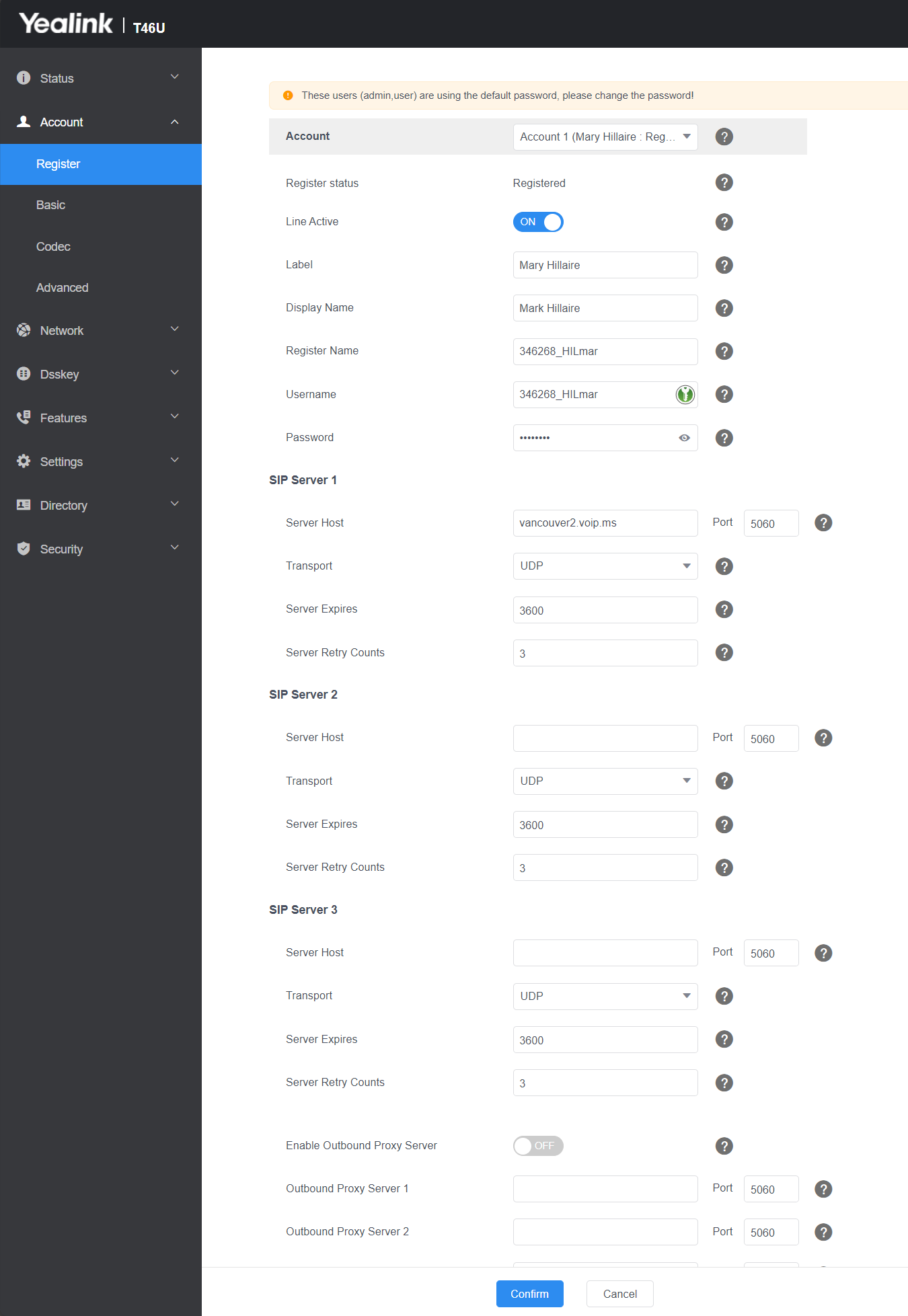
- At the top select the account number you want to use. In this example I'm using Account 1.
- Enter the following settings:
- Line Active: Toggle ON
- Label: Firstname Lastname
- Display Name: Firstname Lastname
- Register Name: 346268_ABCxyz (Replace ABC with first three letters of their last name in uppercase. Replace xyz with the first three letters of their first name in lowercase)
- Username: 346268_ABCxyz (Replace ABC with first three letters of their last name in uppercase. Replace xyz with the first three letters of their first name in lowercase)
- Password: Use Sub Account password in Keeper
- Server Host: vancouver2.voip.ms - Click Confirm at the bottom. If you did it correctly you should see it the home screen on the phone with a green symbol next to it.
Setting the wallpaper
- You can upload the background image and screensaver for the phone under Settings then click on Preference.
- Here you can upload the image for the wallpaper which is located here "IST - Information Technology\Phone System\malahat-bg.png"
- You can also do the same for the screensaver with the same file located here "IST - Information Technology\Phone System\malahat-bg.png"
- Then click Confirm
Factory Reset
Hold Speaker key, power off, power on, continuing to hold speaker key. Wait to see the blue screen, hit 1.
No comments to display
No comments to display