
(Browser) Accessing the Camera System: A Step-by-Step Guide
This guide provides instructions on how to access and navigate the camera system through the web browser (Chrome, Firefox, Edge). Please ensure that you have received your login credentials from the IT department before proceeding.
Step 1: Logging In
- Open your web browser.
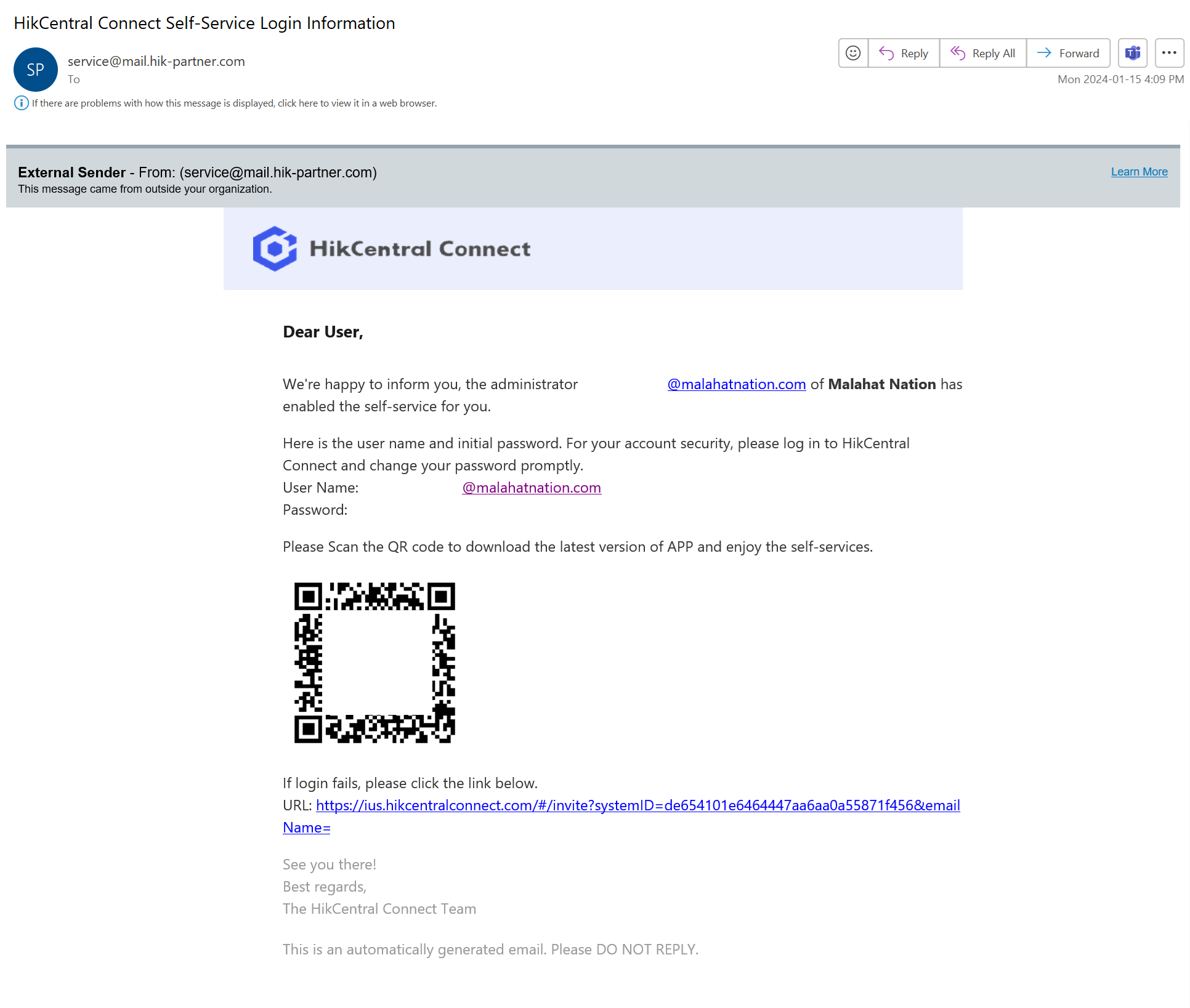
- Navigate to HikCentral Connect Login Page.
- Enter the login credentials provided by the IT department (screenshot below).
Step 2: Accessing Video Feed
- Once logged in, locate the top menu bar on the homepage.
- Click on the 'Video' option.

Step 3: Selecting Cameras or Reviewing Past Videos
-
To View Live Camera Feeds:
- Under the 'Video Security' tab, you will see a list of available cameras.
- Select the camera of your choice to view the live feed.
-
To Review Past Videos (Video on Demand - VOD):
- Click on 'Video Search'.
- Use the provided tools to search and review past video recordings.
Additional Notes
- Ensure you are connected to a stable internet connection for optimal streaming quality.
- Contact the IT department if you encounter any issues or need further assistance.
No comments to display
No comments to display