
How to Edit or Add an Email Signature in Classic Outlook
Note: To generate the standard Malahat email signature, please fill this form.
Follow these steps to edit or add an email signature in the classic version of Outlook (desktop application):
Steps to Edit or Add a Signature
-
Access the Signature Settings
- Open Outlook on your desktop.
- Navigate to:
File > Options > Mail > Signatures.
-
Open the Signatures and Stationery Dialog Box
- In the Mail section of the Options window, click the Signatures... button.
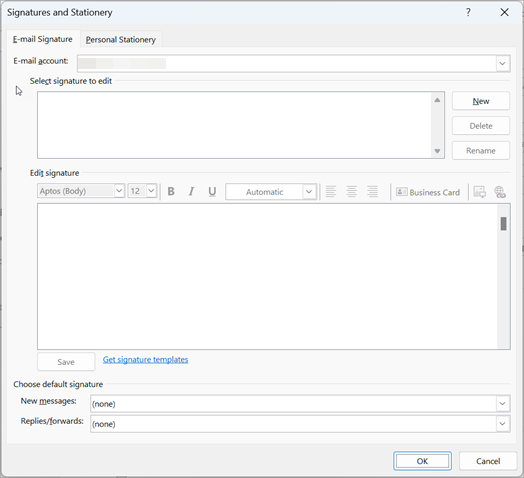
-
Edit or Create a Signature
- In the Signatures and Stationery dialog box:
- To Edit an Existing Signature:
- Select a signature from the list.
- Make your changes in the Edit signature box.
- To Add a New Signature:
- Click New.
- Enter a name for the new signature.
- Compose your signature in the Edit signature box.
- To Edit an Existing Signature:
- In the Signatures and Stationery dialog box:
-
Customize Your Signature
- Use the formatting tools to adjust:
- Font style, size, and color.
- Alignment and spacing.
- Add links, images, or a company logo, if needed.
- Use the formatting tools to adjust:
-
Set a Default Signature (Optional)
- Under Choose default signature, configure:
- New messages: Select a signature for new emails.
- Replies/forwards: Choose a signature for replies and forwarded emails (or leave blank).
- Under Choose default signature, configure:
-
Save Your Changes
- Once you've finished editing or creating your signature, click Save.
- Click OK to close the Signatures and Stationery dialog box.
-
Exit the Options Menu
- Click OK in the Outlook Options window to return to your inbox.
No comments to display
No comments to display