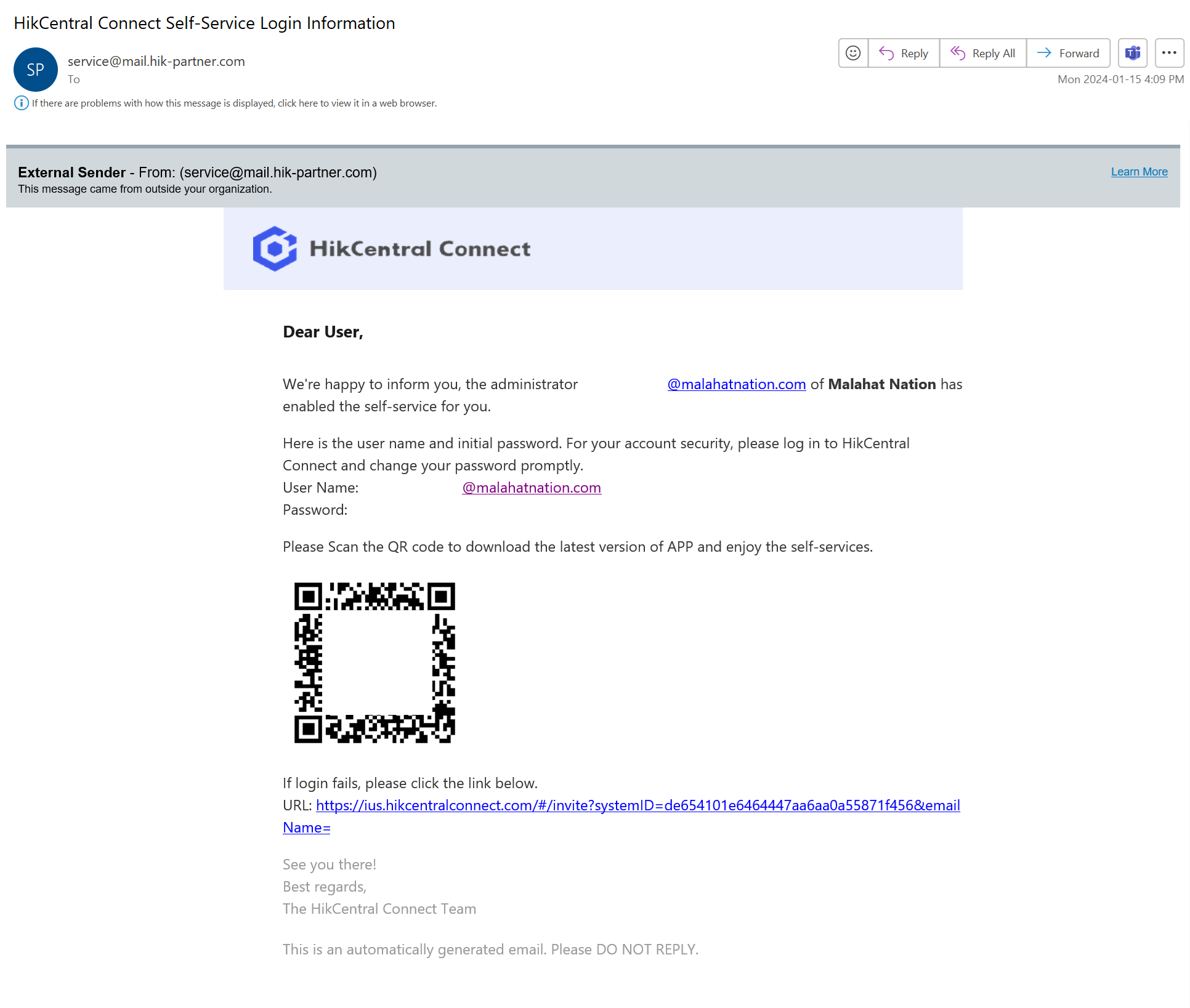
Accessing the Camera System through Mobile: A Step-by-Step Guide
This guide provides instructions on how to access and navigate the camera system through the mobile (Android, iOS). Please ensure that you have received your login credentials from the IT department before proceeding.
Step 1: Downloading the App
Scan the QR Code:
Use your mobile device to scan the provided QR code sent by IT to your email.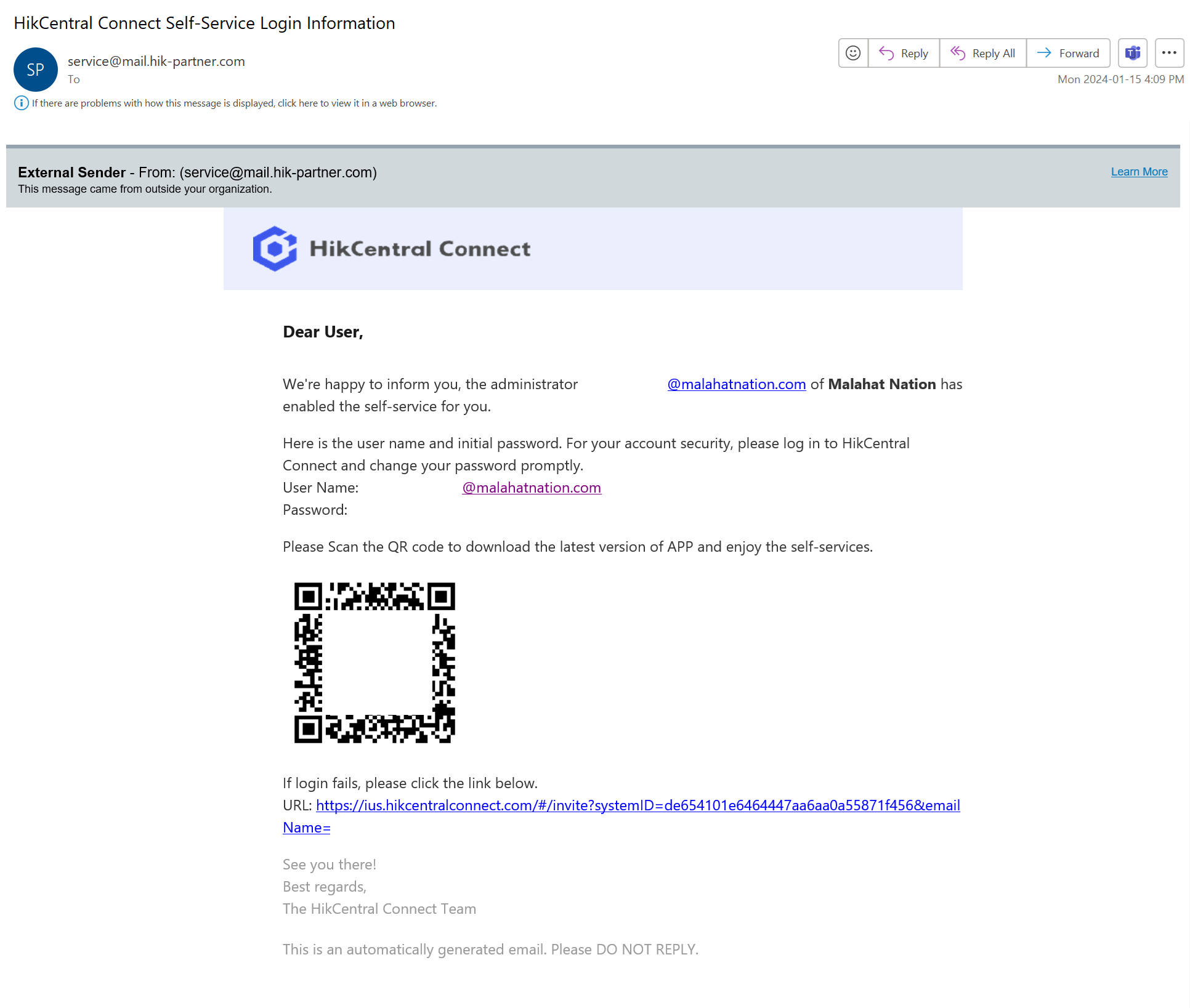
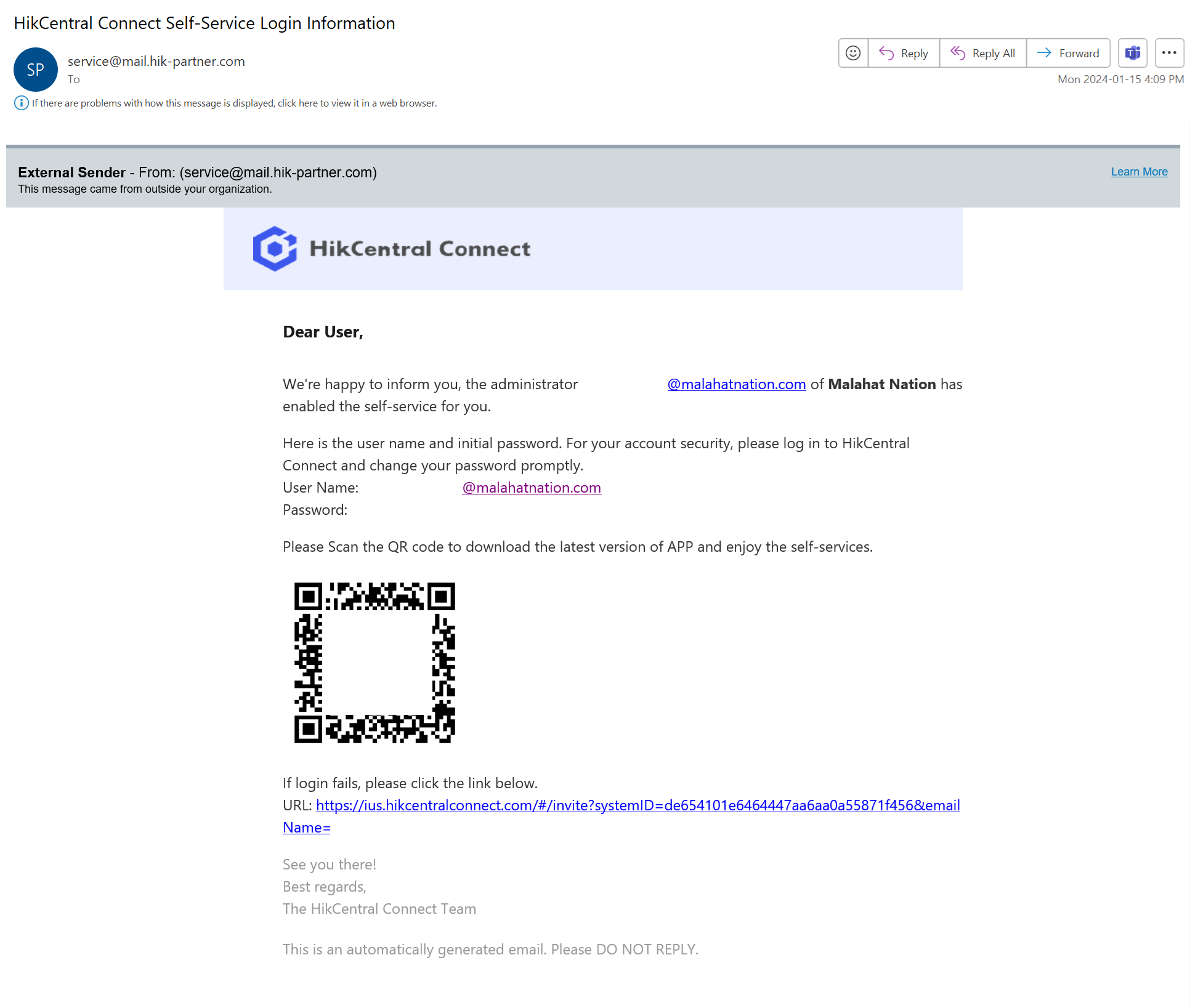 This QR code will direct you to the appropriate app store (Apple App Store for iOS devices, Google Play Store for Android devices).
Install the App:
Once directed to the app store, download and install the camera system application.
Step 2: Logging In
Open the installed app on your mobile device.
Click Agree to Terms & Conditions prompted.
Select Canada as Country/Region
Click Enter HikCentral Connect
Enter the login credentials that were provided to you by the IT department.
Navigating the App
Upon successful login, you will have access to the camera system features.
The app interface may differ slightly from the web version, but it should be intuitive and user-friendly.
Additional Notes
Ensure your mobile device is connected to a stable internet connection for optimal performance.
If you have difficulty scanning the QR code, check your device's camera settings or try a different QR code scanning app.
Contact the IT department if you encounter any issues during installation, logging in, or navigating the app.