
How to Edit or Add an Email Signature in New Outlook
Follow these steps to edit or add an email signature in the classic version ofnew Outlook (desktop application):
Steps to Edit or Add a Signature
-
Access
theEmail Signature Settings- Open Outlook
onandyour desktop.
- Open Outlook
Navigatenavigate to:
File > Options > Mail > Signatures.-
Open the Signatures and Stationery Dialog Box In theMailsection of the Options window, click theSignatures...button.
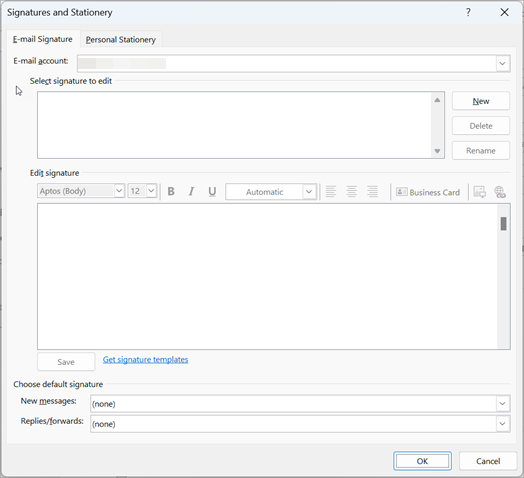
EditSelect or Create a Signature
- In the Signatures and Stationery dialog box:
- To Edit: Select an
Existing Signature: Select aexisting signature from thelist.
- To Edit: Select an
Makeand make your changes in the Edit signature box.
Customize Your Signature
- Use the formatting tools to
adjust:style Fontsignaturestyle,(e.g.,size,font,andcolor,color.
Set a Default Signature (Optional)
- Under Choose default signature,
configure:set:- Your preferred signature for New messages
:.
Select a - Your preferred signature for New messages
- A signature for
new emails.
Save Yourand Apply Changes
OnceClickyou'veSavefinishedafter editing or creating yoursignature, clickSave.signature.ClickSelect OK to close theSignatures and Stationery
Exit the Options Menu