
Getting started on iPhone
Section 1: Login to office.com on your PC
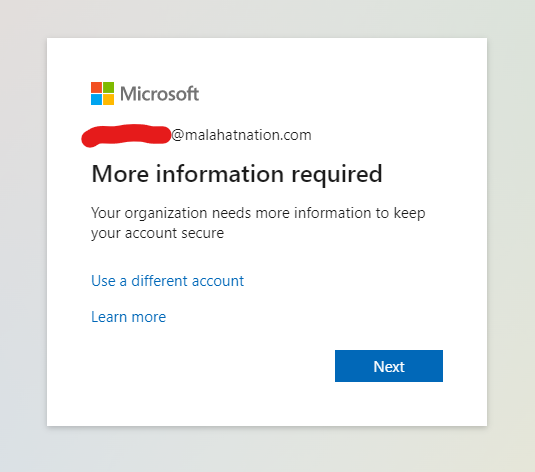
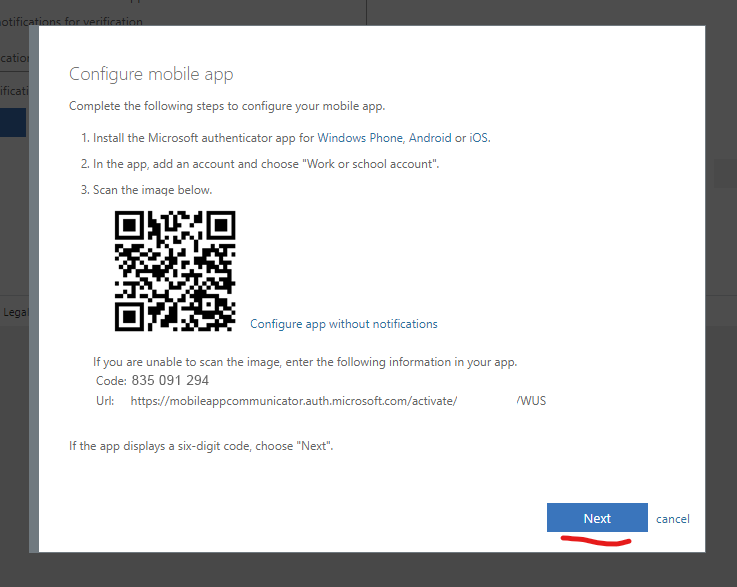
1.1 If you see the screen below, click 'Next'. If you do not see the screen, please reach out to Dan
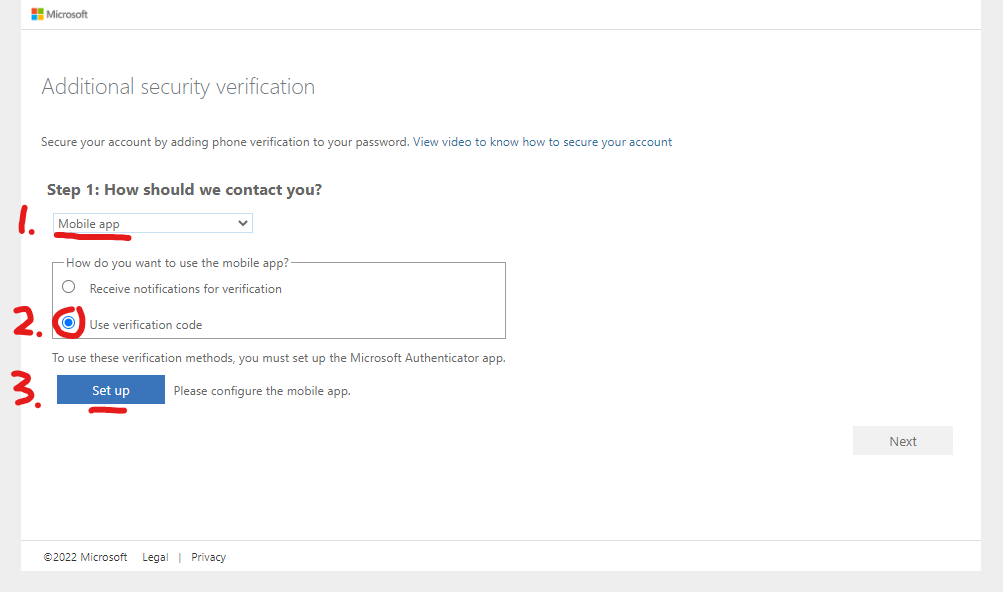
1.2 Select 'Mobile app', 'Use verification code', and finally, 'Set up'
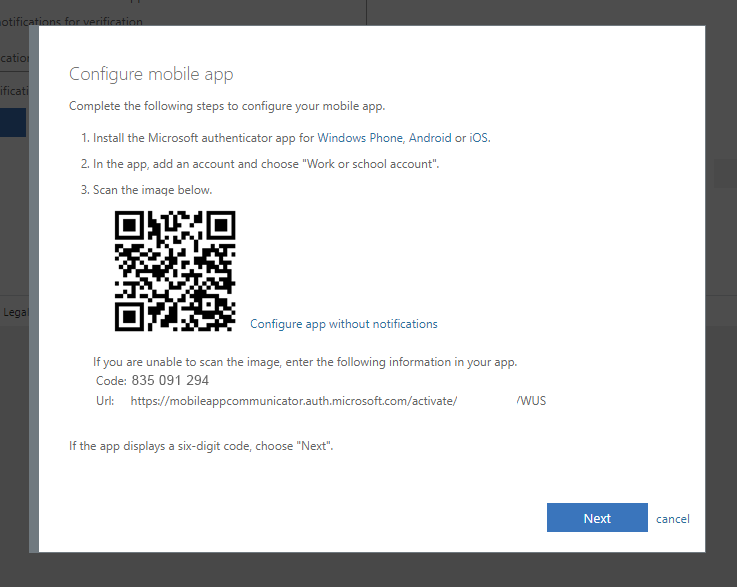
1.3 Once you see the QR code, leave the screen up and switch over to your phone
Section 2: Get the mobile app
Microsoft Authenticator on the Apple App Store: https://apps.apple.com/ca/app/microsoft-authenticator/id983156458
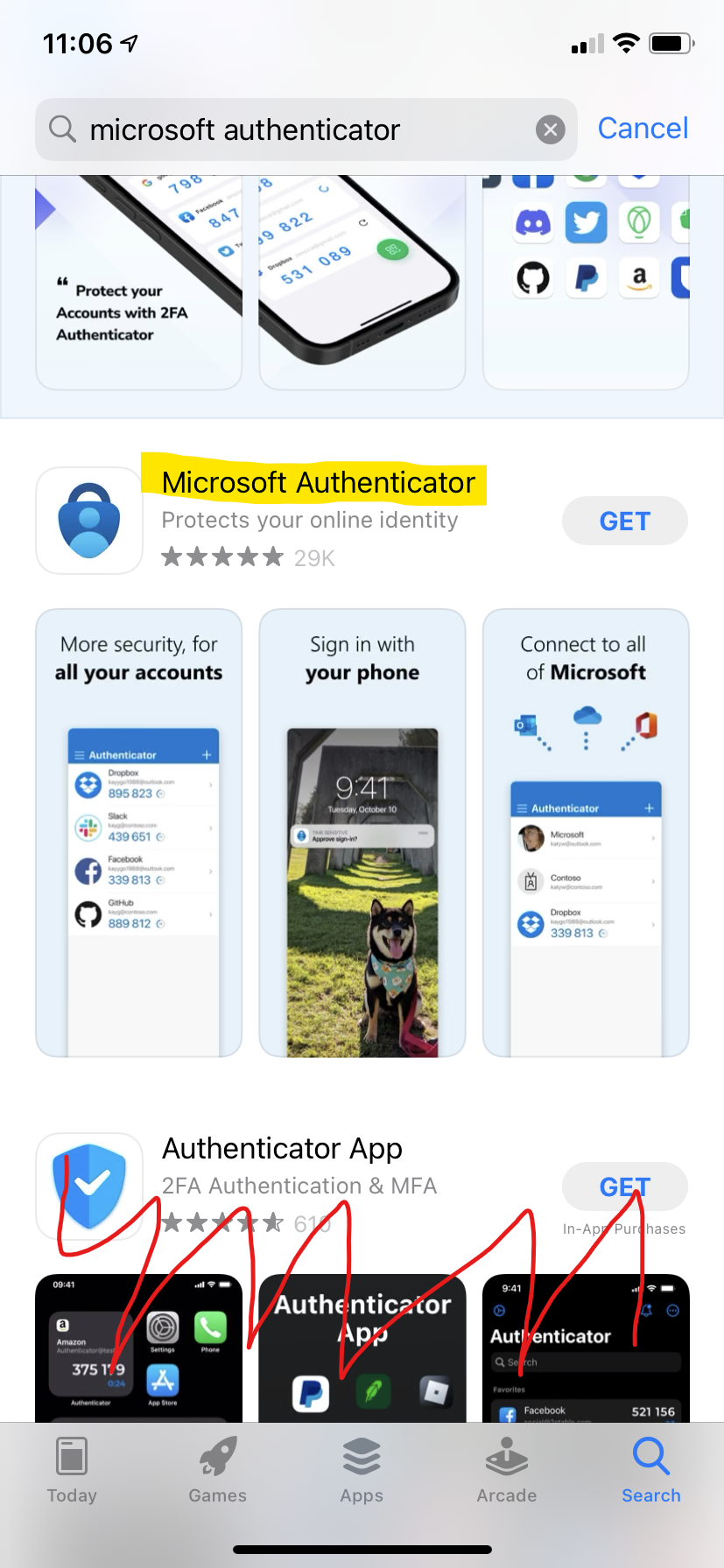
Please ensure you download the correct app, as many of the options have similar names and logos
2.1 The app store page should look like the screenshot below, install the app
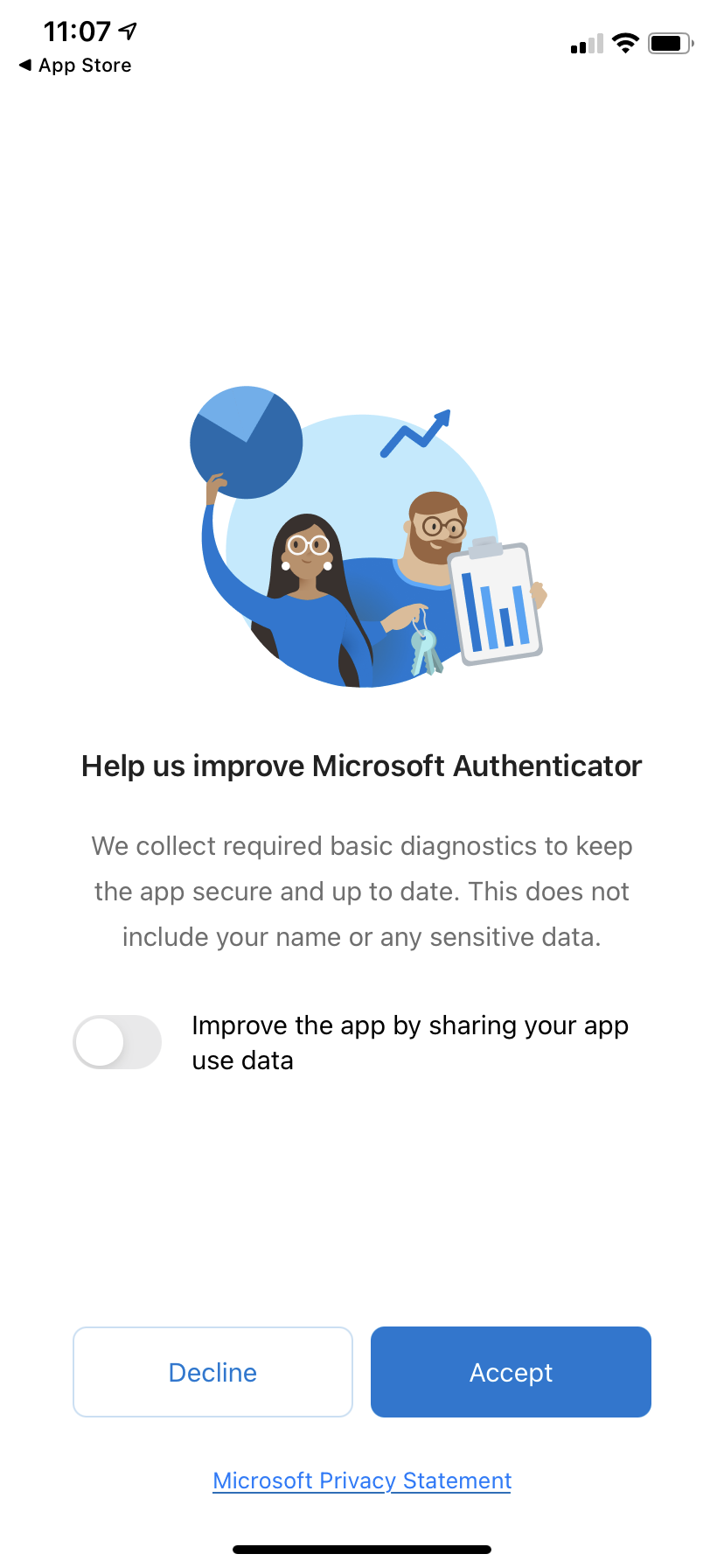
2.2 Upon opening the app for the first time, you will be greeted with the page shown below. You do not have to move the slider, but you must click 'Accept'
2.3 Click 'Scan a QR code'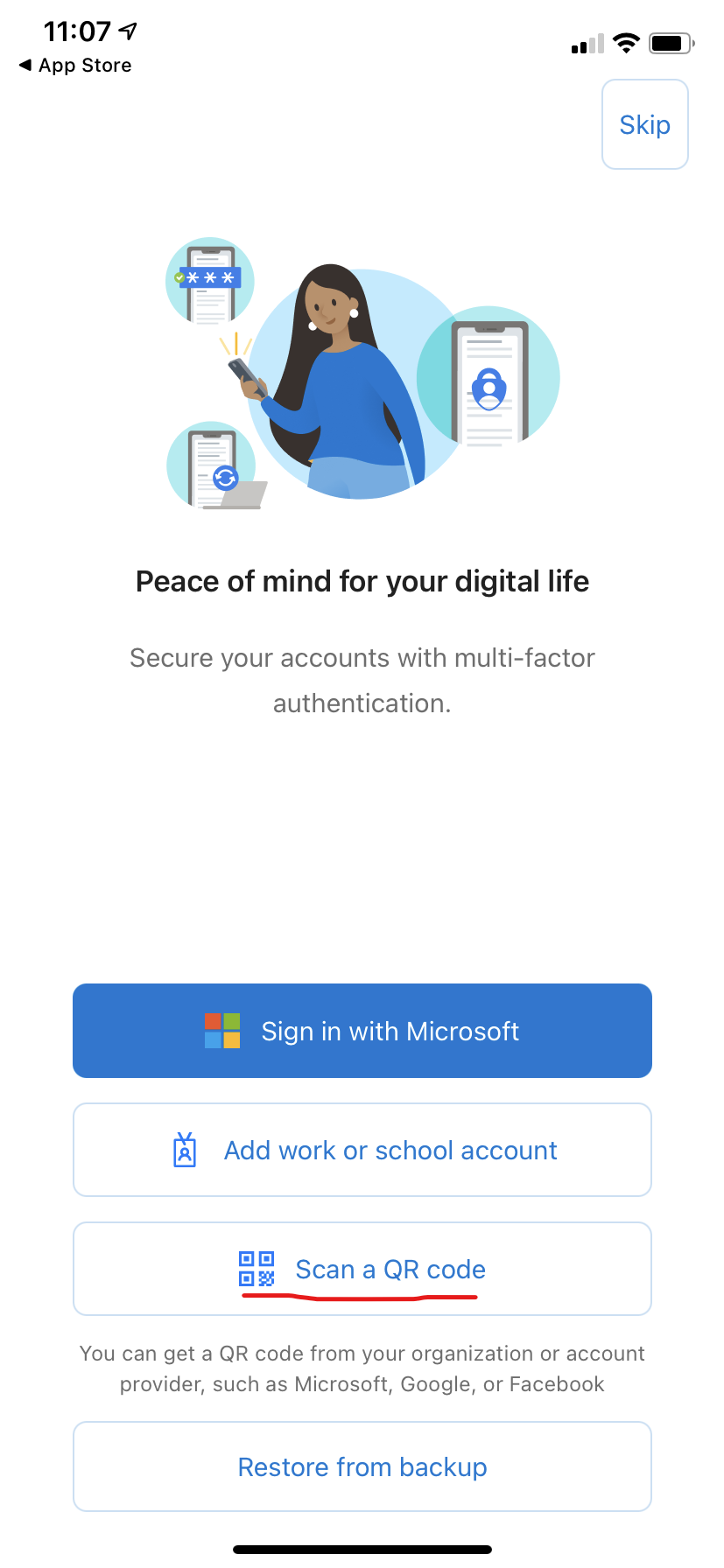
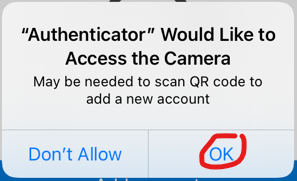
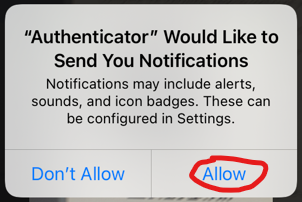
2.4 Allow access to your camera and allow notifications via the security pop-ups.
2.5 Click 'Add account' or the '+' icon in the top right. Select 'Work or school account'. Select 'Scan a QR code'
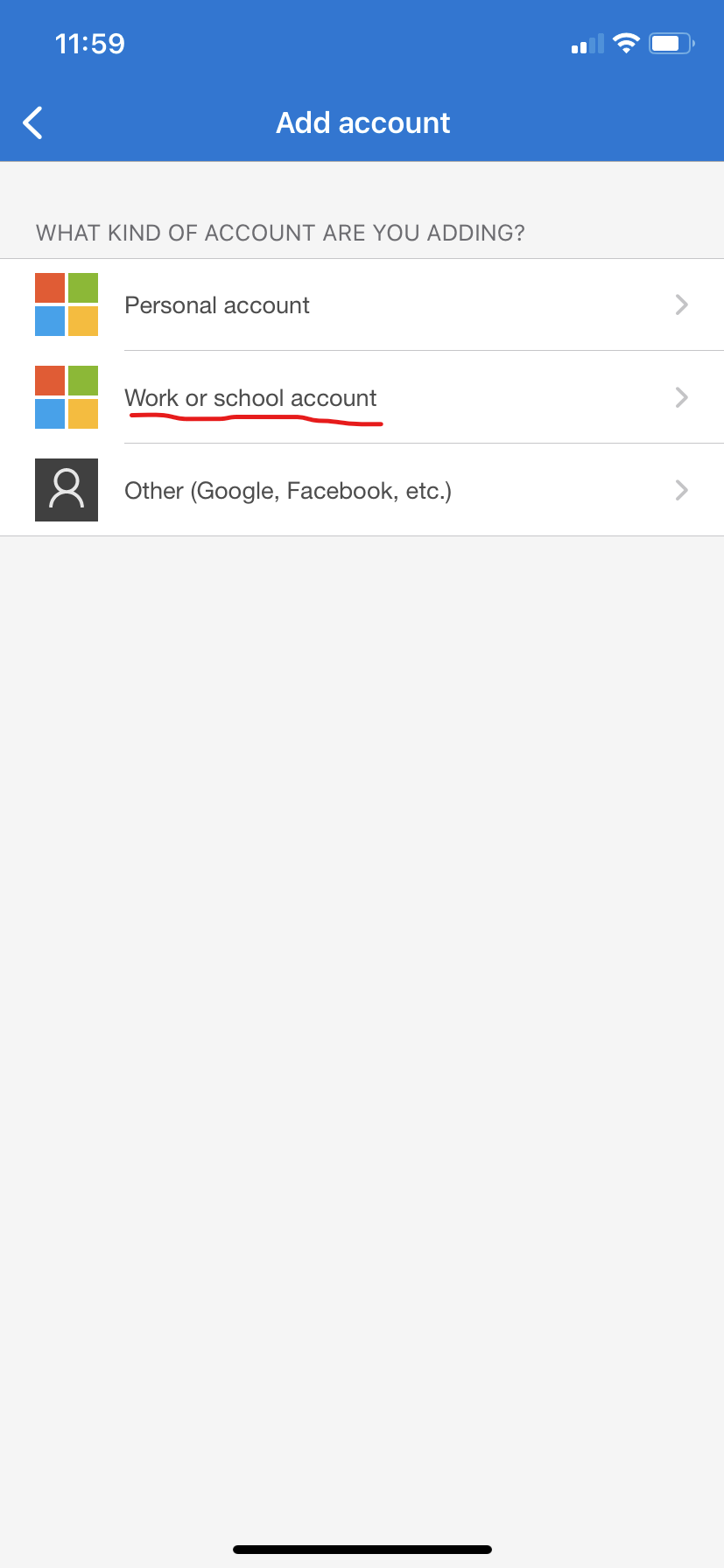
2.66. Scan the QR code displayed on your PC screen. If successful, your account details should appear. If the info looks correct, click Save.
2.7 Your account should now appear in the main screen of the authenticator app. Please select it. You should see a 6 digit code.
Section 3: Finishing the set-up
3.1 Once you have successfully scanned the QR code from your PC into your phone, you may click 'Next' until you get to 'Step 2' .
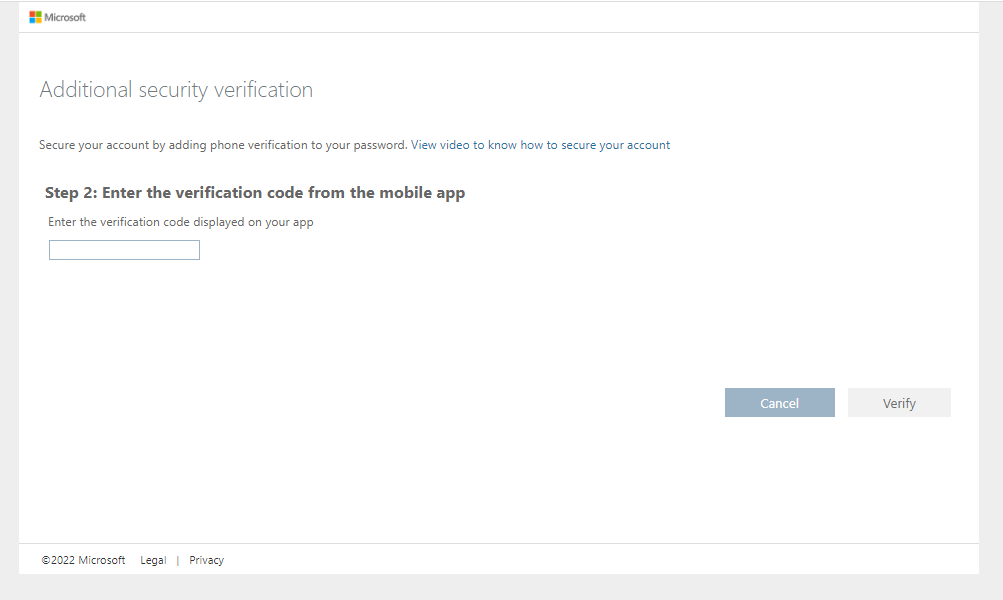
3.2 Now, you will need to verify that everything was done correctly. Enter the 6-digit code from your phone into the field on your PC and click verify.
Please note that this code changes on 30 second intervals, so you need to be reasonably speedy.
3.3 Lastly, you will need to add a phone number as a recovery method.
Congratulations! You have successfully set up Multi-Factor Authentication on your Microsoft account.
If you encounter difficulties during this process, please reach out to Dan and he will help walk you through it.